Getting Kubernetes Data into Splunk and Observability
Maciek Stopa with Claude Fable 59 min read#splunk, #kubernetes, #otel, #observability, #data-onboarding, #gdi
This article covers how Kubernetes became the standard way to orchestrate containers, why you should export its data to a central platform, how to do that best, and when to send it to the Splunk platform, Splunk Observability Cloud, or both. It ends with a hands-on lab: one minikube cluster onboarded to both products.
This post is the Kubernetes deep dive of my field guide to every way of getting data into Splunk.
Why Kubernetes is everywhere
A container is a process, or a small group of them, isolated from the rest of the machine: its own filesystem, its own network view, its own slice of CPU and memory.
Kubernetes runs containers across a fleet of machines. It decides where each one goes, restarts it when it dies, and keeps the replica count you asked for.
The pieces of a container are older than Linux itself. Unix could lock a process into its own corner of the filesystem as far back as 1979, and the kernel kept collecting ways to fence processes off from one another, but using them meant stitching kernel features together by hand. What was missing was packaging, and that is what Docker delivered in 2013 as an image format and a single command: build it once, ship it, run it anywhere. Containers spread fast.
Which created the next problem. One container is easy. Three hundred of them scattered across a fleet of machines, dying and restarting through the night, is a scheduling problem. Google had already lived through this privately, having spent more than a decade running containers at scale on a system called Borg. Its engineers set out to solve the problem in the open.
After that it moved quickly. The first commit landed in June 2014, version 1.0 arrived a year later, and Google handed the project to the Cloud Native Computing Foundation instead of keeping it. Today Amazon, Microsoft and Google all sell managed Kubernetes.
How far kubectl gets you
Plenty can go wrong with an application deployed in Kubernetes. A container crashes on startup, restarts, crashes again. An image will not pull. A readiness probe fails, so the pod stays out of the service and traffic goes nowhere. A pod sits in Pending because no node has room for it.
The easiest way to start monitoring and investigating is kubectl.
Is the cluster healthy right now?
$ kubectl get nodes
NAME                   STATUS     ROLES    AGE   VERSION
kube-worker-1          NotReady   <none>   1h    v1.23.3
kubernetes-node-bols   Ready      <none>   1h    v1.23.3
Every node with its status, role and kubelet version. A node that is not Ready is the first thing to rule out.
$ kubectl get pods
NAME                                READY     STATUS    RESTARTS   AGE
nginx-deployment-1370807587-6ekbw   1/1       Running   0          1m
nginx-deployment-1370807587-fg172   0/1       Pending   0          1m
Every pod and its phase. Scan for Pending, for CrashLoopBackOff, and for a climbing restart count. Add --all-namespaces for the whole cluster.
$ kubectl top node
NAME    CPU(cores)   CPU(%)   MEMORY(bytes)   MEMORY(%)
node1   1m           10%      2Mi             10%
node2   5m           10%      6Mi             10%
CPU and memory actually in use per node. Needs Metrics Server installed in the cluster.
$ kubectl top pod
NAME                             CPU(cores)   MEMORY(bytes)
etcd-node01                      51m          143Mi
kube-apiserver-node01            98m          824Mi
The same per pod. This is how you find the noisy neighbor eating a node other pods are sharing.
Why is this pod not running?
$ kubectl describe pod <pod>
Events:
  Type    Reason     Age   From               Message
  ----    ------     ----  ----               -------
  Normal  Scheduled  34s   default-scheduler  Successfully assigned default/nginx-... to kube-worker-1
  Normal  Pulled     30s   kubelet            Successfully pulled image "nginx" in 1.146417389s
Container state, restart count, readiness, and an Events log at the bottom. The events are where a stuck pod explains itself.
$ kubectl get events
LAST SEEN   TYPE      REASON             OBJECT          MESSAGE
30s         Warning   FailedScheduling   pod/nginx-...   0/4 nodes are available: 4 Insufficient cpu
What the cluster decided and when, across every object: scheduling failures, image pull errors, probe failures, evictions.
What is the application actually doing?
$ kubectl logs <pod>
10.88.0.1 - - [17/Feb/2022:21:51:05 +0000] "GET / HTTP/1.1" 200 615
10.88.0.1 - - [17/Feb/2022:21:51:09 +0000] "GET /healthz HTTP/1.1" 200 2
Stdout and stderr from the container that is running now. Whatever your application prints, nothing more.
$ kubectl logs --previous <pod>
panic: runtime error: invalid memory address or nil pointer dereference
        [signal SIGSEGV: segmentation violation code=0x1 addr=0x0]
Logs from the previous instance of a container that has restarted. From kubectl, the only way to read what a crash-looping container printed before it died.
Output is abbreviated. Samples come from the Kubernetes documentation, except theget events and logs lines, which are representative rather than quoted.
kubectl is for ad hoc investigation: you already suspect something and go look. For everything else, the recommended practice is to export telemetry out of the cluster into an observability backend. OpenTelemetry is the default way to do that: a vendor-neutral collector that ships logs, metrics and traces to whichever backend you pick.
The Splunk OpenTelemetry Collector for Kubernetes
Splunk ships and supports its own build of the open source OpenTelemetry Collector.
In a cluster, that Collector ships as a Helm chart, and the chart is a Splunk Validated Architecture. A default install deploys two workloads:
- An agent DaemonSet, one pod on every node, collecting container logs and node, pod and container metrics locally.
- A cluster receiver Deployment, exactly one, talking to the API server for what no single node can see: deployments short of their replicas, pods nobody could schedule, cluster events.
This chart replaced Splunk Connect for Kubernetes, the older Fluentd-based project, which reached end of support on 1 January 2024 and is archived.
Why store Kubernetes data in the Splunk platform?
To the Splunk platform, Kubernetes data is just events in an index, or metrics in a metrics index. You search them with SPL and keep them as long as compliance demands.
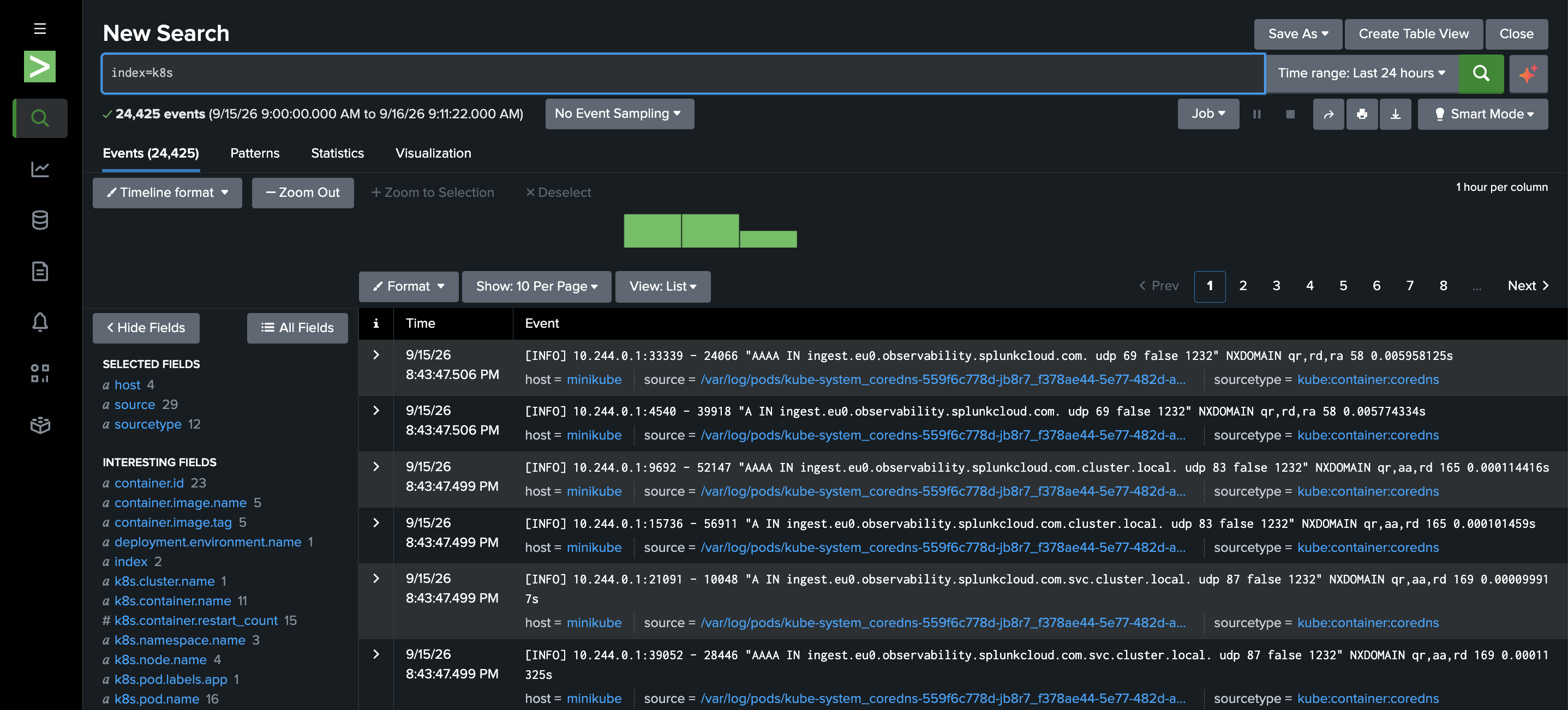
index=k8s on this article's lab cluster after a day: 24,425 events, here CoreDNS container logs, each carrying the pod, namespace, node and image as fields. An index, a search, and whatever retention you set.The strongest use case is security:
- Who deleted my deployment?
- Who created a privileged pod?
- Why did a shell spawn inside a production container?
- Who is scanning the Kubernetes API without authenticating?
Dashboards
Splunk ships no dashboards or content pack for Kubernetes on the platform side. The Splunk Add-on for Kubernetes had dashboards for Splunk Connect for Kubernetes and is deprecated with it. Your options are a third-party app from Splunkbase, dashboards you build yourself, or the Observability navigators and dashboards in the next section.
Use case 1: Security and SOC
Splunk Security Content, delivered as the Enterprise Security Content Update (ESCU) app, ships four Kubernetes analytic stories:
| Analytic story | What it covers |
|---|---|
| Kubernetes Security | 16 detections on Kubernetes Audit (_json) and Kubernetes Falco (kube:container:falco) |
| Kubernetes Scanning Activity | Someone footprinting the cluster; 3 hunting detections on EKS and GKE provider logs |
| Kubernetes Sensitive Object Access Activity | Access to secrets and other sensitive objects; currently ships no detections of its own |
| Abnormal Kubernetes Behavior | 14 detections built on Infrastructure Monitoring data |
The detections are specific: Create or Update Privileged Pod, Abuse of Secret by Unusual User Group, Pod With Host Network Attachment, Node Port Creation, DaemonSet Deployed, Falco Shell Spawned.
Use case 2: Application logs
Your applications already write their logs to stdout and stderr; the chart picks them up with no change to the applications themselves: no logging library, no sidecar, no agent inside the image. From there they are ordinary application logs in Splunk, queried and retained like the logs of everything else you run. Developers can additionally instrument the application itself and feed its own logs, metrics and traces into the same telemetry pipelines.
Use case 3: Event alerting
Kubernetes reports everything that happens to a workload as events: a pod that cannot be scheduled, a volume that will not mount, an image pull that keeps failing. In Splunk, you can create an alert for each of those.
The Splunk platform wins when:
- Logs are the deliverable.
- The use case is security or compliance.
- Retention is measured in months.
- The cluster is one source among fifty.
- You already own the license and your team writes SPL.
Why send Kubernetes data to Observability Cloud?
To Observability Cloud, the same cluster is streaming metrics with dimensions attached, which buys you the topology you would otherwise have to build.
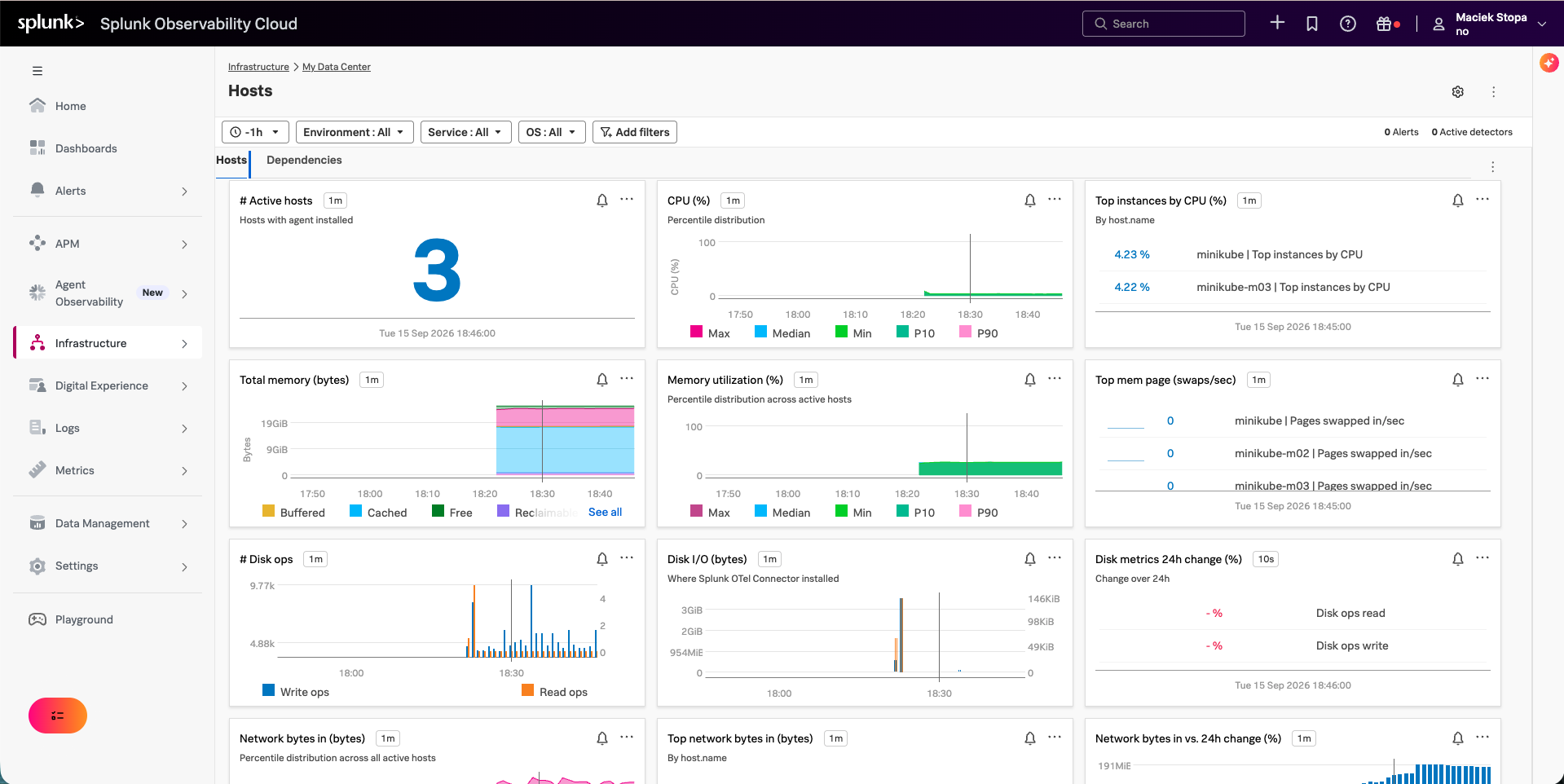
The Kubernetes views in Infrastructure Monitoring cover clusters, nodes, pods, containers and workloads. Each entity type gets a table with metrics as columns, a dashboard and a heatmap.
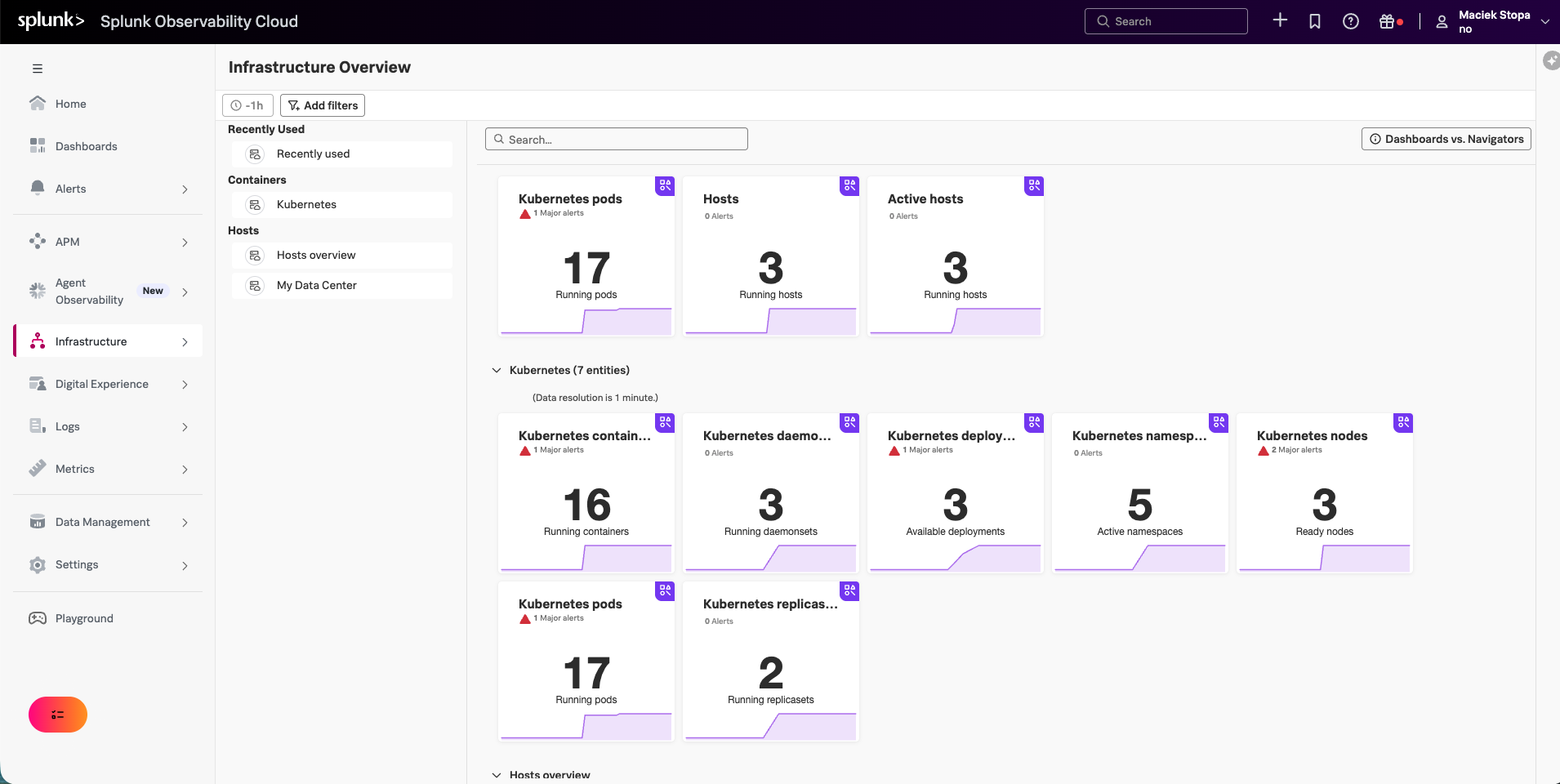
Drilling down is the same view, narrowed. The Relationship filters mirror the cluster's own hierarchy: cluster, node, pod, container. Each pick filters every chart on the page.
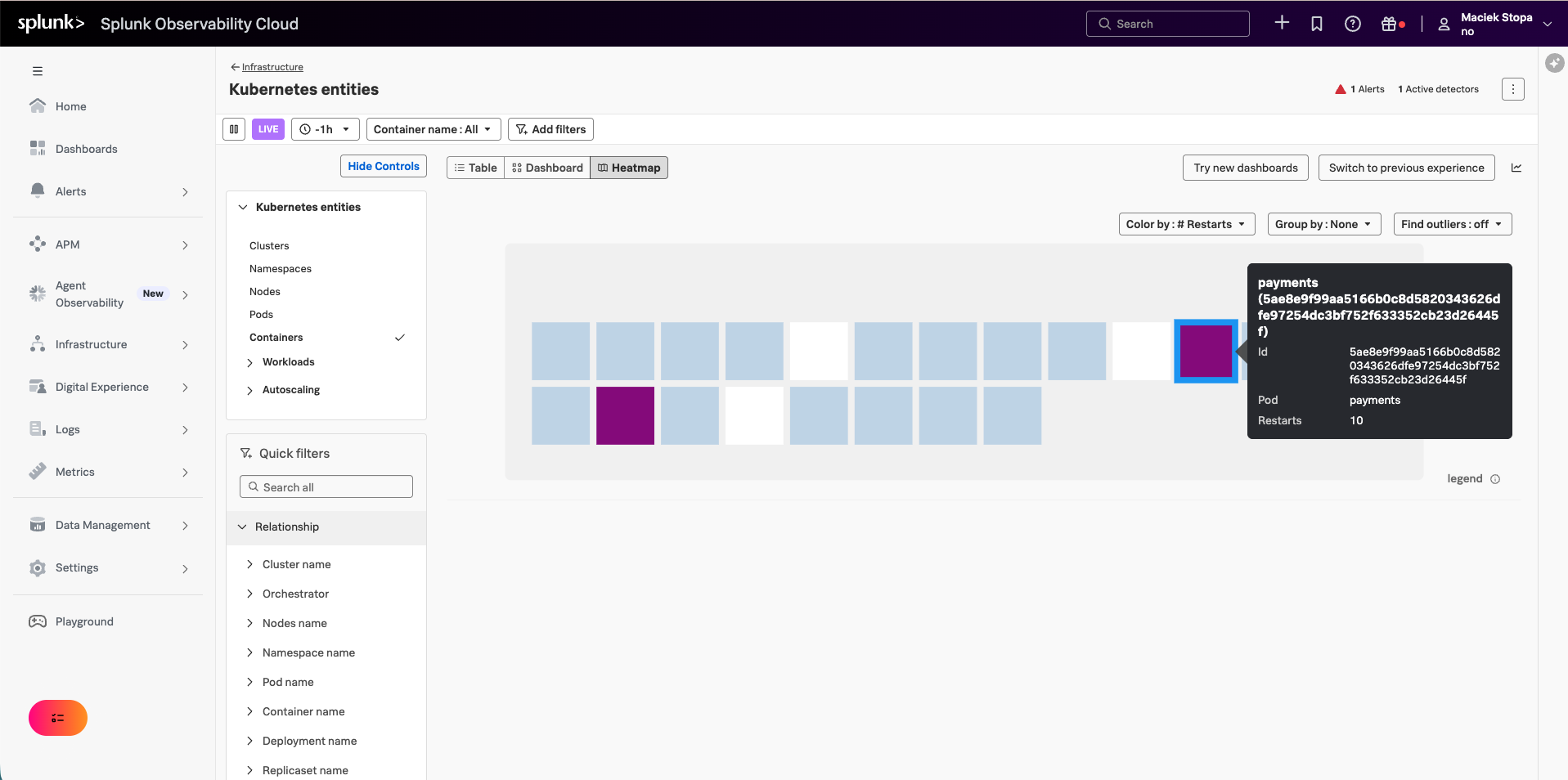
The dashboards need no building either. Every entity type carries prebuilt charts next to its table, and a built-in Kubernetes dashboard group collects the cluster-wide views: pods by phase, container restarts, deployments not at spec.
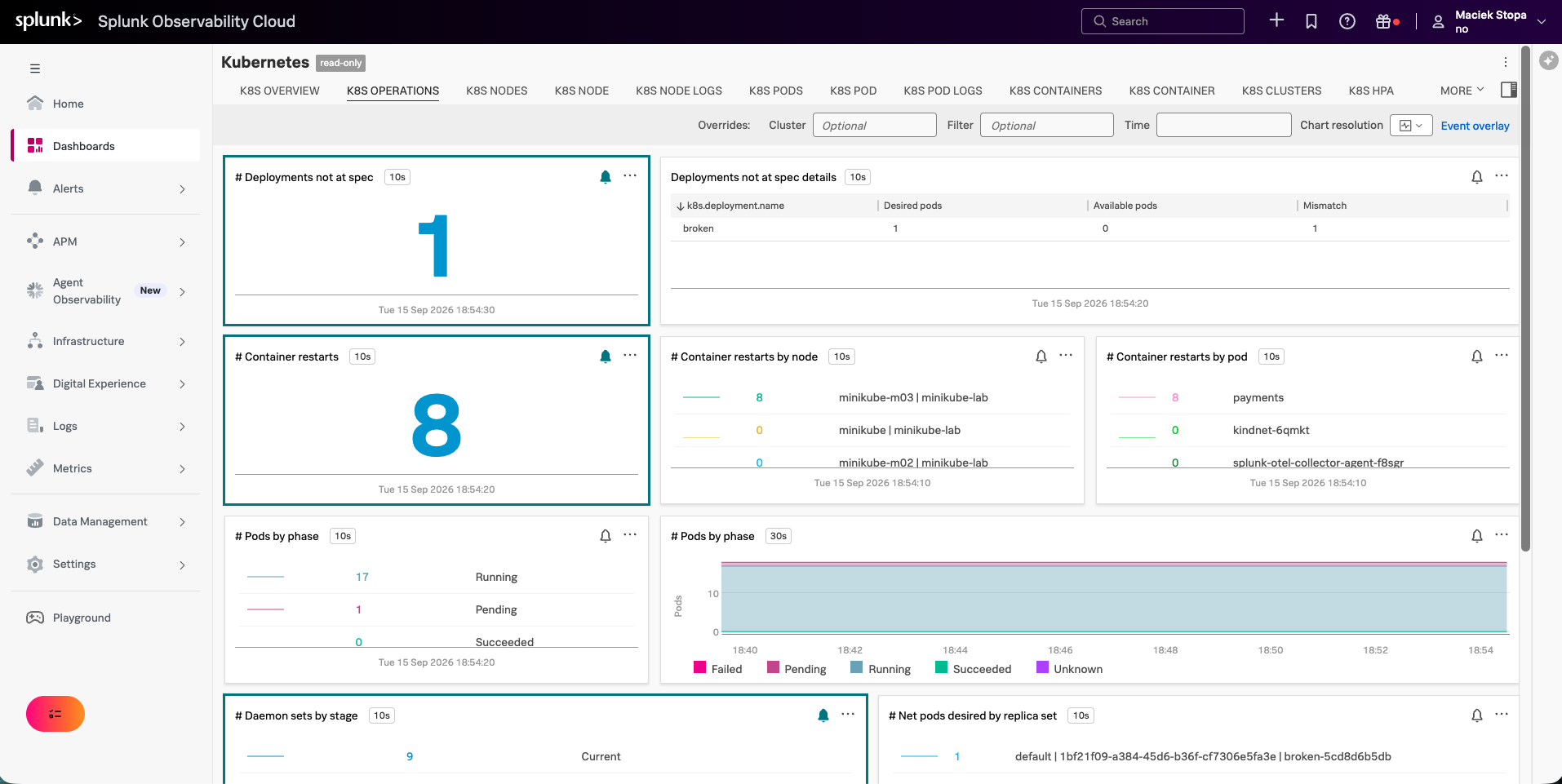
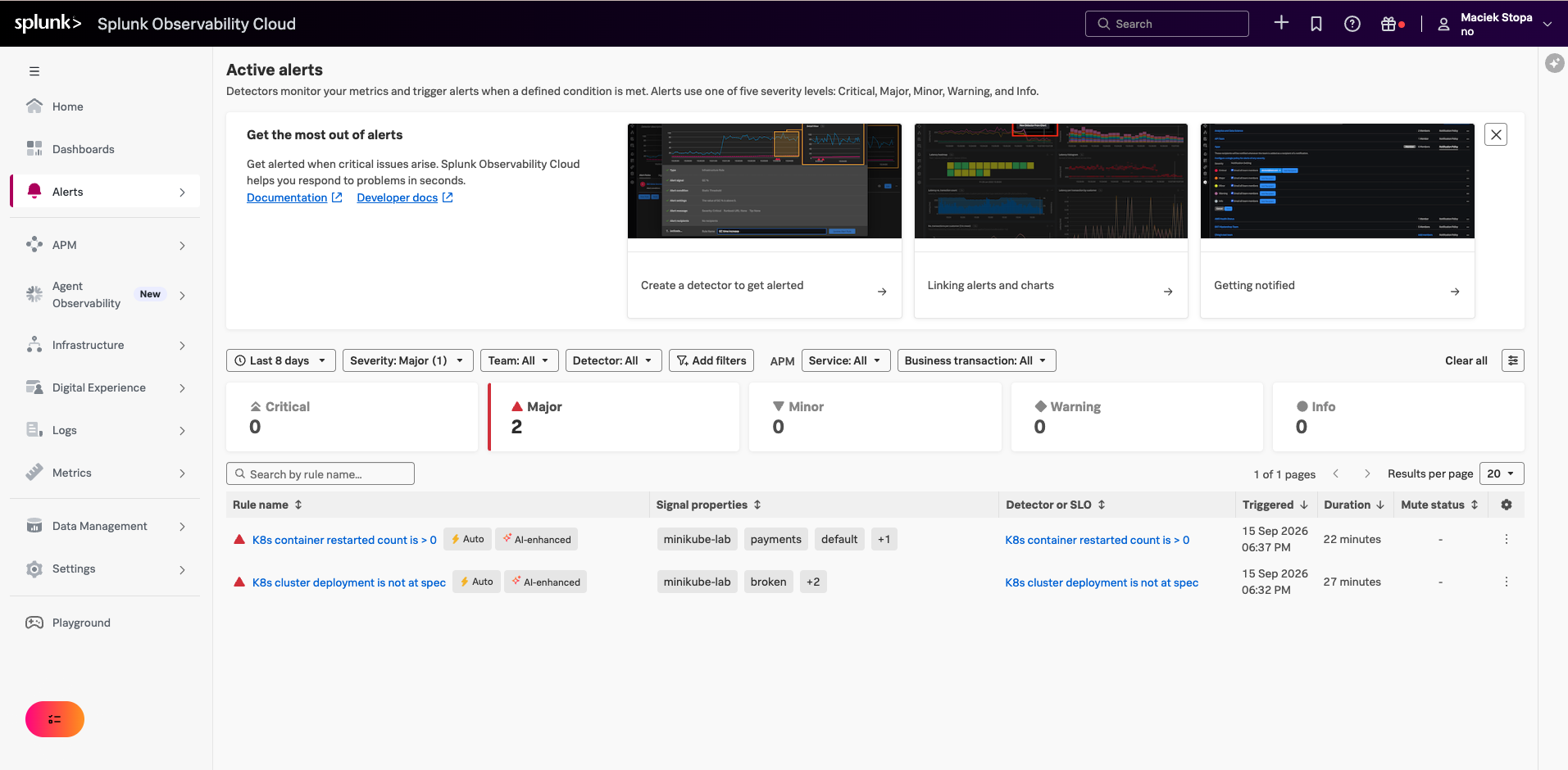
Alerting exists before you configure anything. AutoDetect ships nine Kubernetes detectors out of the box:
- Orchestration. Deployment is not at spec, StatefulSet is not at spec, DaemonSet ready vs scheduled, pod phase pending or failed within 5 minutes, job with failed pods over 90%.
- Infrastructure. Nodes not ready after 30 seconds, node CPU over 95% for 5 minutes, node memory over 90% for 5 minutes.
- Workloads. Container restart count greater than zero in the last 5 minutes.
Those are the failures from the start of this article, already written as alerts.
This is not the full list of what Observability Cloud can do with the data; the Splunk Observability Cloud documentation covers the rest, from APM to Real User Monitoring and Synthetics.
Observability Cloud wins when:
- You need high-resolution, high-cardinality metrics.
- You want cluster topology without building it.
- You run microservices and want to get from infrastructure to a trace in one click.
- You want alerting that works on day one.
Hands-on lab: one cluster, both destinations
In this lab, you start a local Kubernetes cluster with minikube and onboard it to both the Splunk platform and Splunk Observability Cloud.
Create the trials
BrowserBoth products offer free trials. Observability Cloud runs in the browser; Splunk Enterprise is a download you install locally, following the instructions on its download page.
Splunk Observability Cloud trialSplunk platform free trial
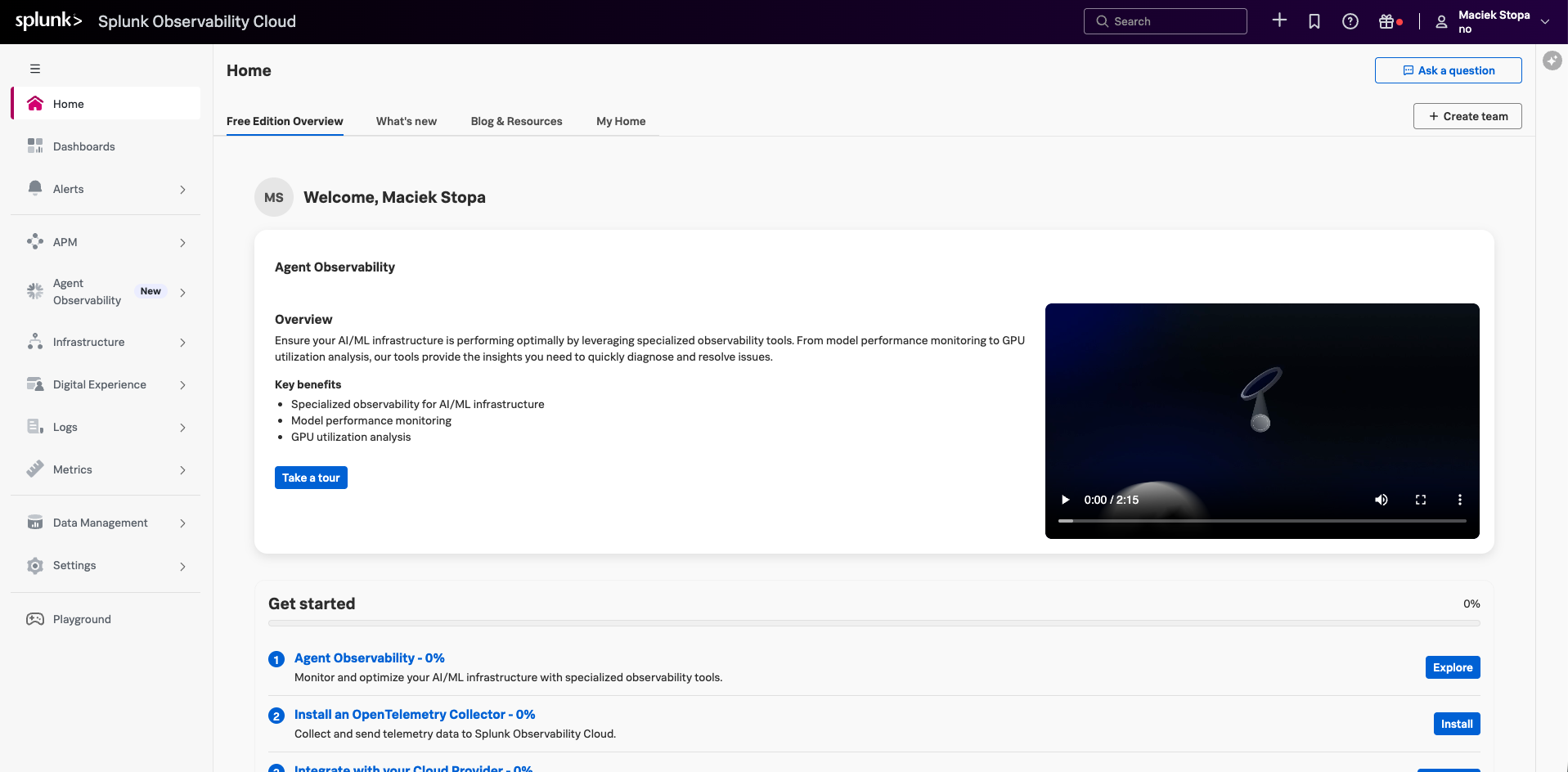
A fresh Observability Cloud trial org, straight after signup. 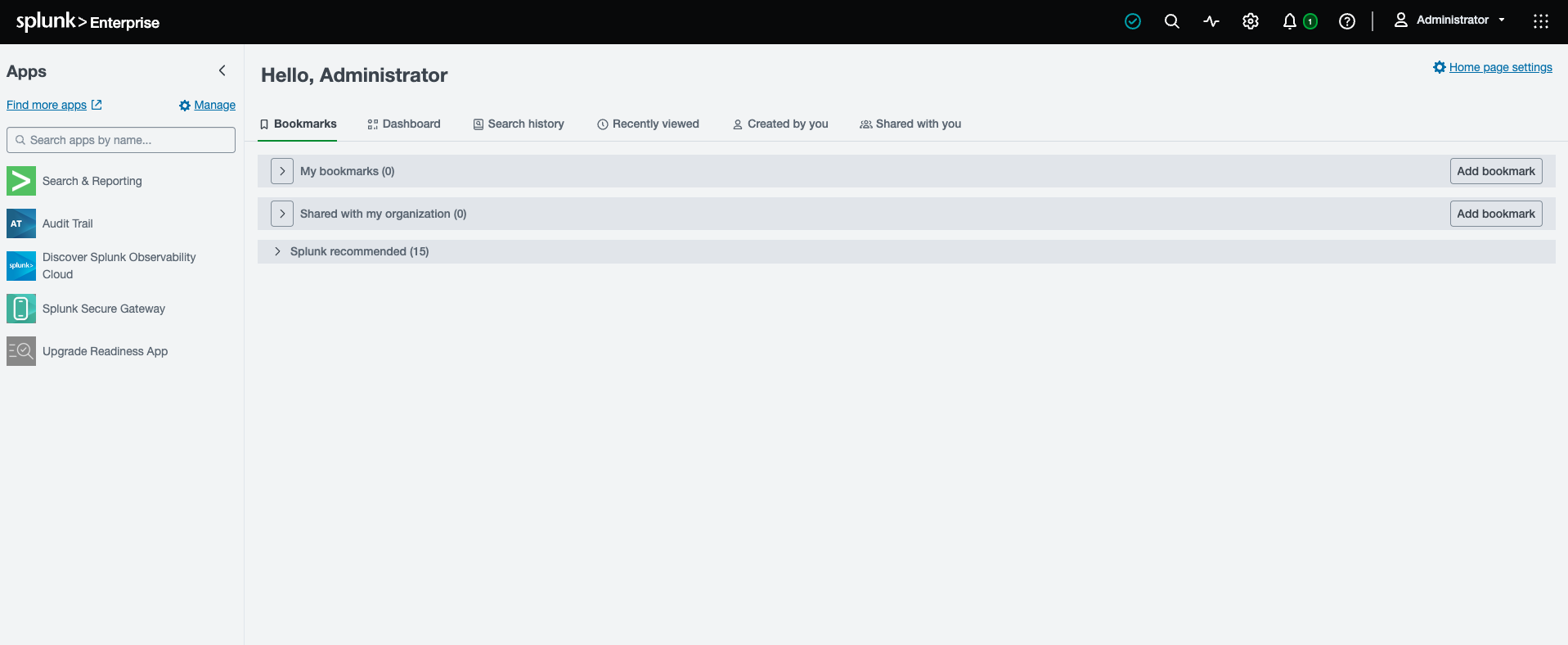
Splunk Enterprise installed locally: the home page at localhost:8000. Get your realm and access token
Observability CloudYou leave this step holding two values:
- The realm, the region code your org lives in. It is part of your org URL:
app.eu0.observability.splunkcloud.commeans the realm iseu0. - An access token. Settings > Access Tokens > Create Token, and give it the ingest authorization scope, or use the Default token every org starts with.
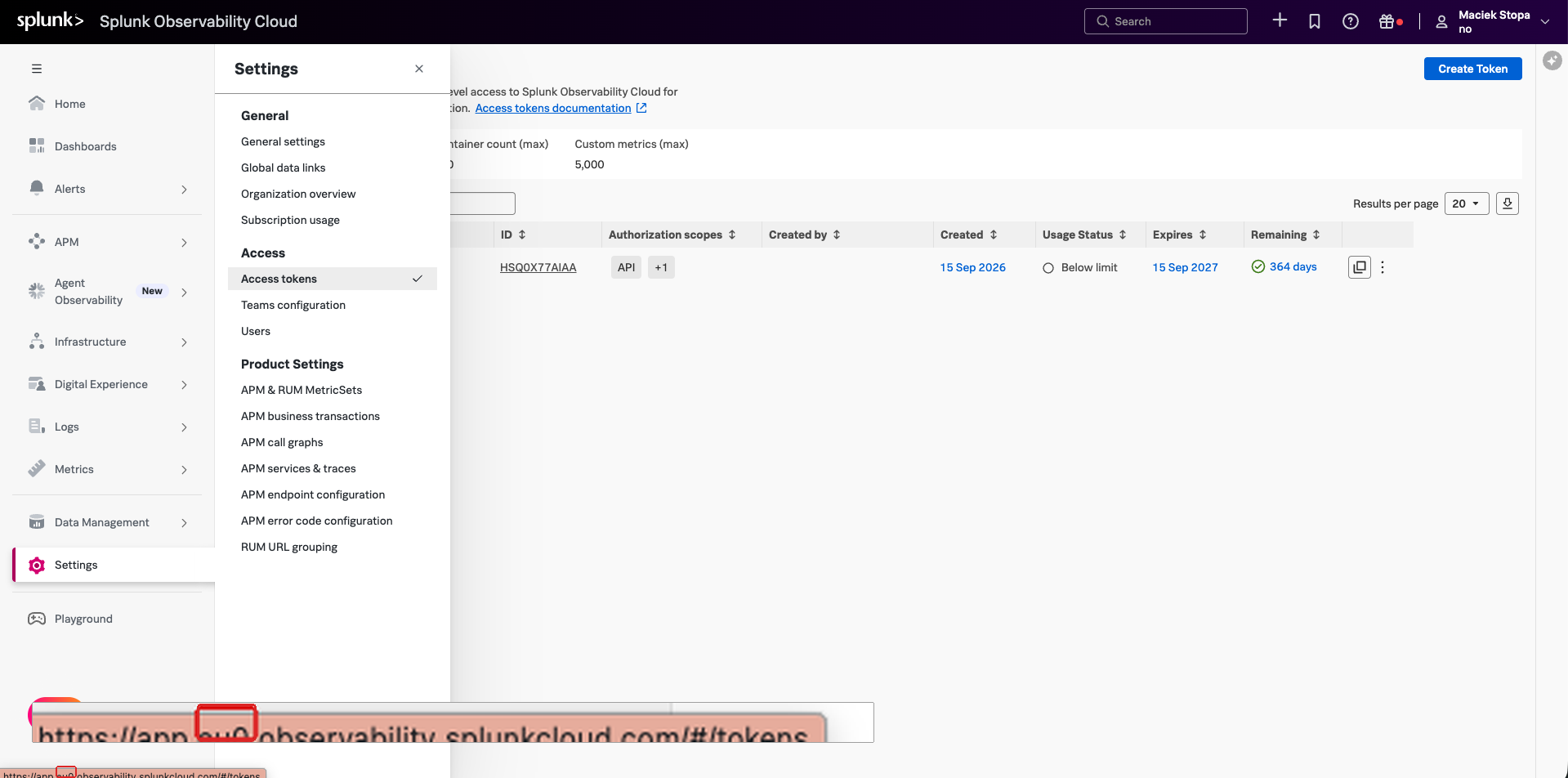
Settings > Access Tokens, with the Create Token button top right. The realm hides in the org URL: here it is eu0.- The realm, the region code your org lives in. It is part of your org URL:
Test the realm and token
TerminalSend one throwaway datapoint straight to the ingest API.
curl -X POST "https://ingest.<REALM>.signalfx.com/v2/datapoint" \
  -H "Content-Type: application/json" \
  -H "X-SF-Token: <ACCESS_TOKEN>" \
  -d '{"gauge": [{"metric": "lab.preflight", "value": 1}]}'
Expect: "OK". A 401 means the token is wrong or belongs to a different realm; a DNS error means the realm does not exist.
Create an events index
Splunk platformSettings > Indexes > New Index. Name it
k8sand leave the type at Events; logs and Kubernetes events will land here.No metrics index in this lab: Kubernetes metrics go to Observability Cloud, so the platform side holds only logs and events. If you ever route metrics to the platform instead, they need their own index of the Metrics type.
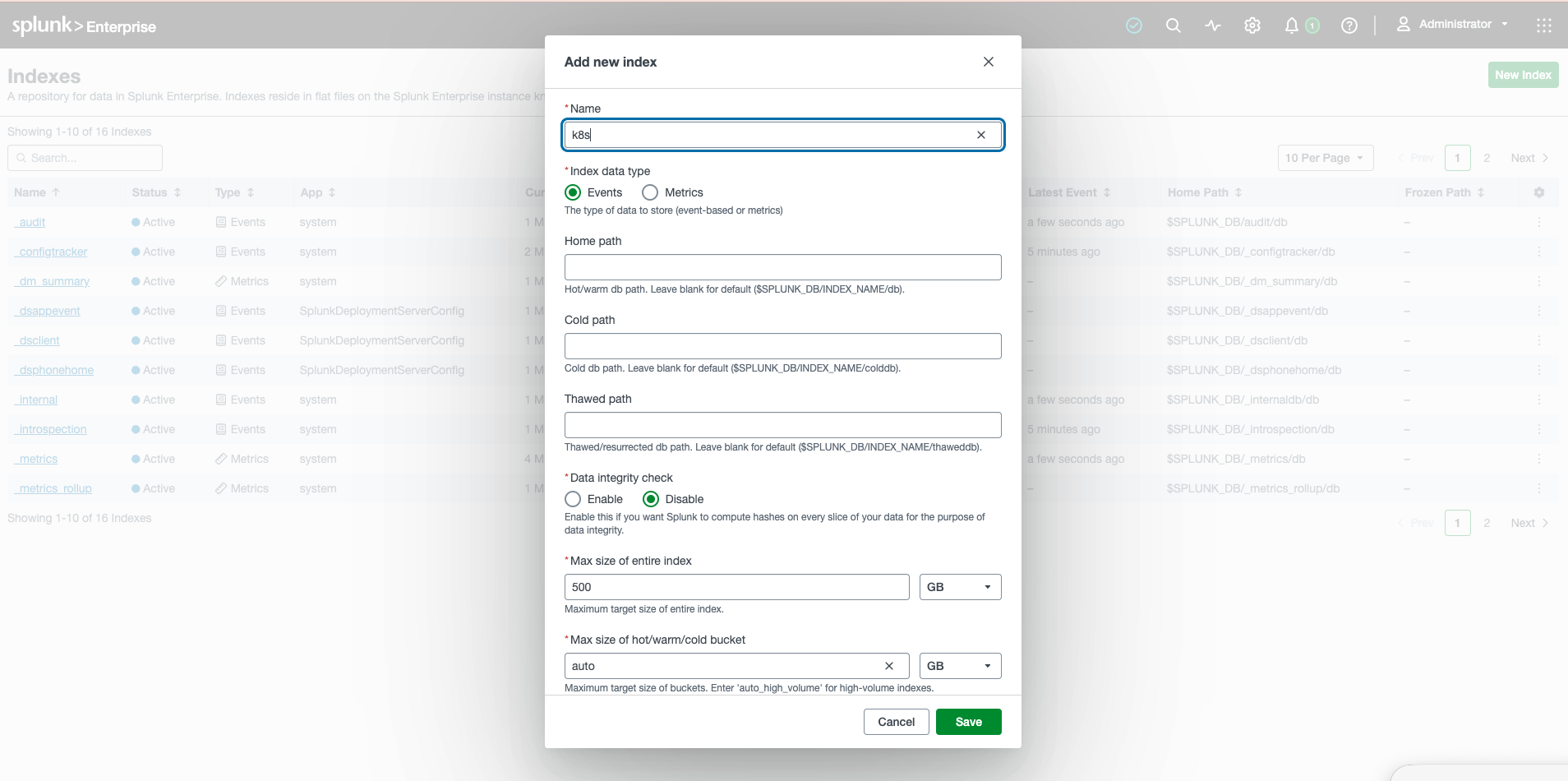
The Add new index dialog: name k8s, index data type Events, everything else at its default.Create a HEC token
Splunk platformSettings > Data Inputs > HTTP Event Collector:
- New Token, and allow it to write to the
k8sindex. - On Splunk Enterprise, HEC starts disabled: open Global Settings on the same page and set All Tokens to Enabled, or every request will be refused.
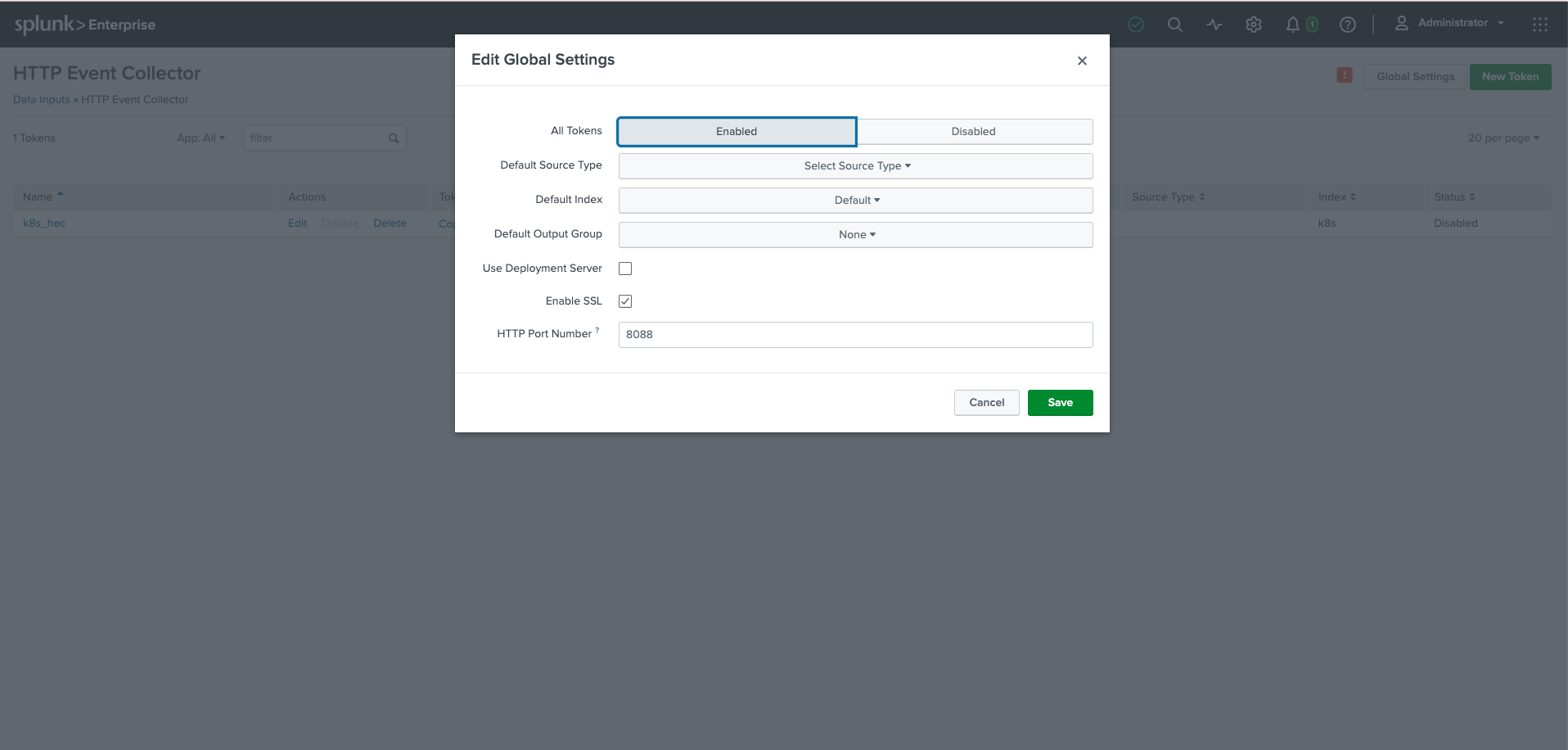
Global Settings on the HTTP Event Collector page: on a local Splunk Enterprise, All Tokens must be flipped to Enabled. - New Token, and allow it to write to the
Test HEC
TerminalSame preflight idea for the platform side: one event over HTTP Event Collector. The
-kaccepts the local install's self-signed certificate.curl -k "https://localhost:8088/services/collector/event" \ -H "Authorization: Splunk <HEC_TOKEN>" \ -d '{"event": "hec preflight", "index": "k8s", "sourcetype": "preflight"}'Expect: {"text":"Success","code":0}
Anything else means the endpoint or the token is wrong, and no Helm value will repair that later. On Splunk Cloud the endpoint is
https://http-inputs-<stack>.splunkcloud.com/services/collector/event, no-kneeded.Install the local tools
TerminalFour tools, each with install instructions for Windows, macOS and Linux on its own site:
- Docker Desktop, running; minikube uses it as the driver
- minikube
- kubectl
- Helm
Start the cluster
TerminalThree nodes give the navigators and heatmaps something to show.
minikube start --driver=docker --nodes 3Expect:
kubectl get nodeslists minikube, minikube-m02 and minikube-m03, all Ready.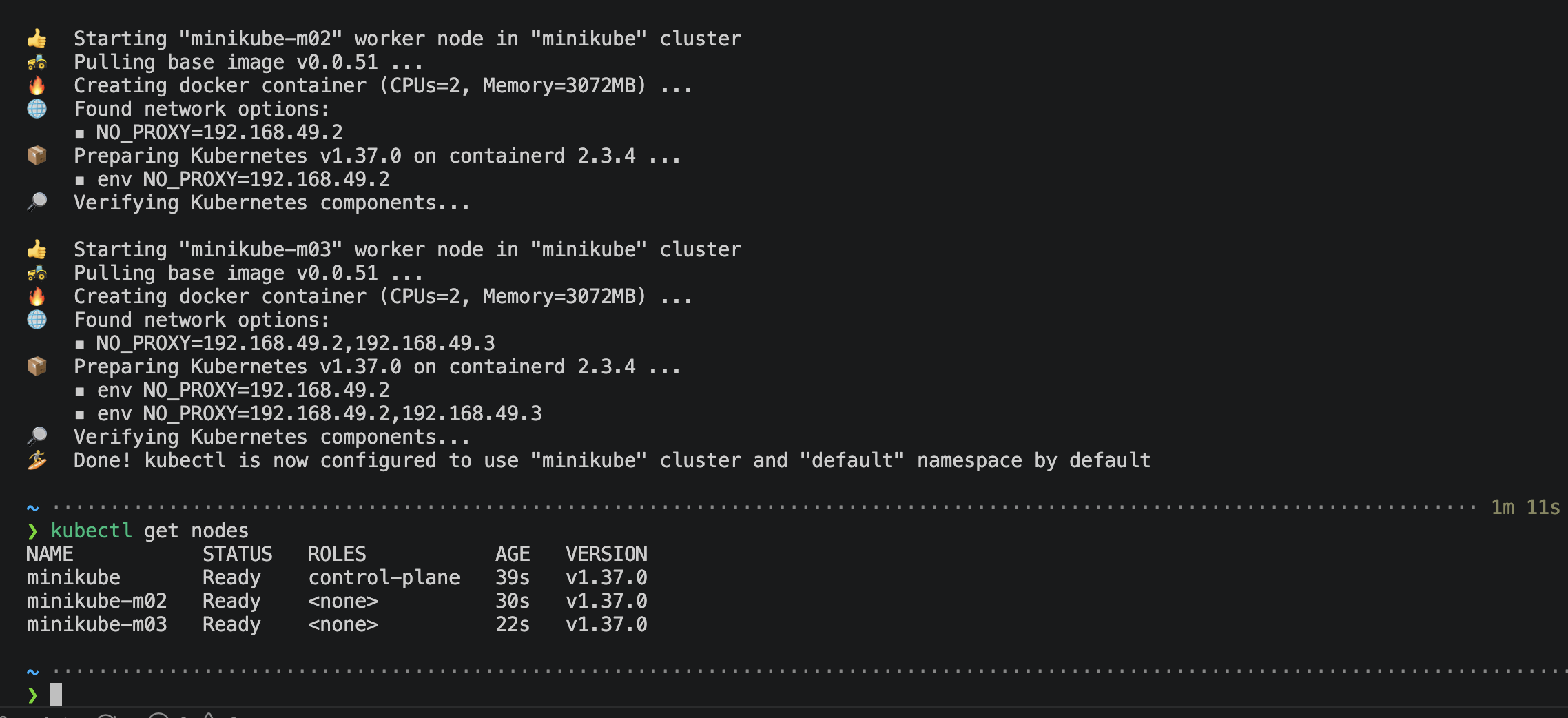
minikube startfinishing its two worker nodes, andkubectl get nodesconfirming all three are Ready.Add the Helm repository
Terminalhelm repo add splunk-otel-collector-chart https://signalfx.github.io/splunk-otel-collector-chart helm repo updateInstall the chart with both destinations
TerminalOne install, two destinations. The chart defaults split the telemetry the way this article argued: logs and Kubernetes events to the platform, metrics and traces to Observability Cloud. The endpoint uses
host.minikube.internal, which is how pods on the Docker driver reach the Splunk Enterprise running on your machine;insecureSkipVerifyaccepts its self-signed certificate. If you prefer clicking, the Observability Cloud UI generates the same command: Data Management > Available integrations > Kubernetes.helm upgrade --install splunk-otel-collector \ --namespace otel --create-namespace \ --set clusterName=minikube-lab \ --set environment=lab \ --set splunkPlatform.endpoint="https://host.minikube.internal:8088/services/collector/event" \ --set splunkPlatform.insecureSkipVerify=true \ --set splunkPlatform.token=<HEC_TOKEN> \ --set splunkPlatform.index=k8s \ --set splunkObservability.realm=<REALM> \ --set splunkObservability.accessToken=<ACCESS_TOKEN> \ splunk-otel-collector-chart/splunk-otel-collectorOn Splunk Cloud, the endpoint is
https://http-inputs-<stack>.splunkcloud.com/services/collector/eventand theinsecureSkipVerifyline goes away. Tokens on the command line are fine for a throwaway lab; anywhere serious, keep them in a Kubernetes Secret. Metrics can go to the platform as well: create a metrics-type index and setsplunkPlatform.metricsEnabled=trueandsplunkPlatform.metricsIndex.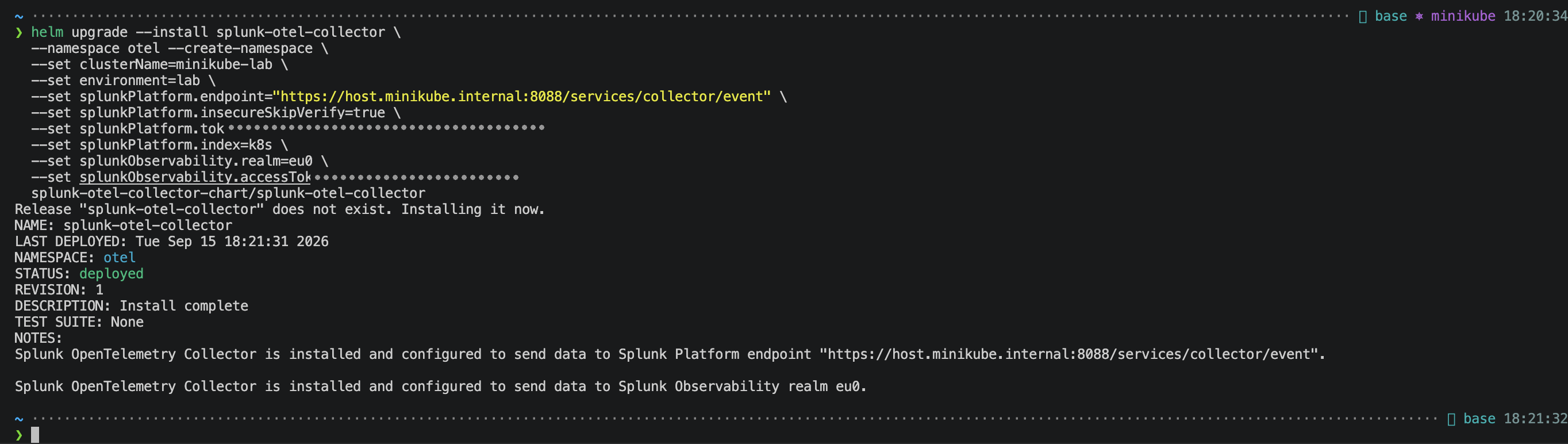
The install finishing: release deployed into the otelnamespace, and the chart notes confirming both destinations.Verify the collector
TerminalTwo checks before you look for data: the pods, and their logs.
kubectl -n otel get pods
kubectl -n otel logs -l app=splunk-otel-collector --tail=100 | grep -i -E 'error|refused|deadline'
Expect: One agent pod per node plus a single cluster receiver, all Running, and the log grep comes back empty.
Watch the data arrive
Both UIsGive it a couple of minutes, then search Splunk:
index=k8s | stats count by sourcetypeExpect:
kube:container:<container name>for every container,kube:eventsfor the cluster's decisions. In Observability Cloud, go to Infrastructure > Kubernetes entities > Pods and open the Dashboard tab: the built-in charts fill in within a few minutes.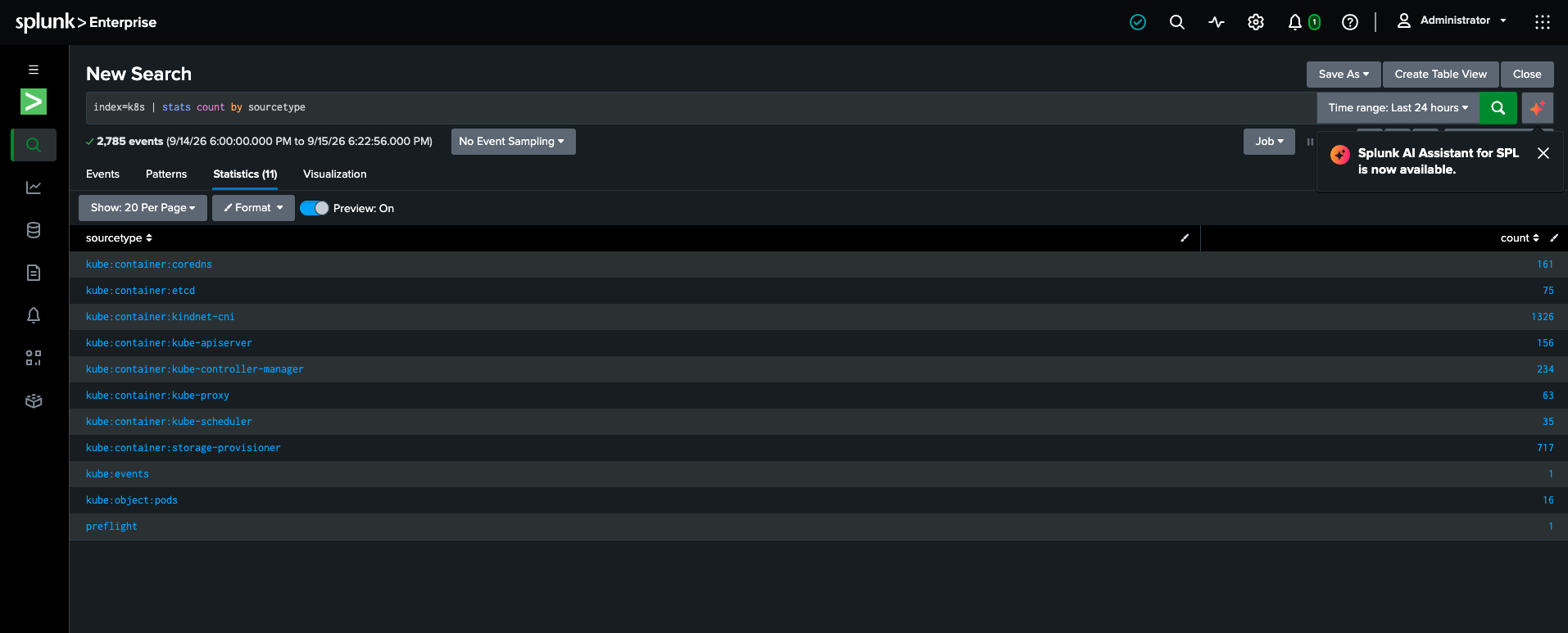
Minutes after the install, every container has its own sourcetype. The preflightevent from the HEC test is in the list too.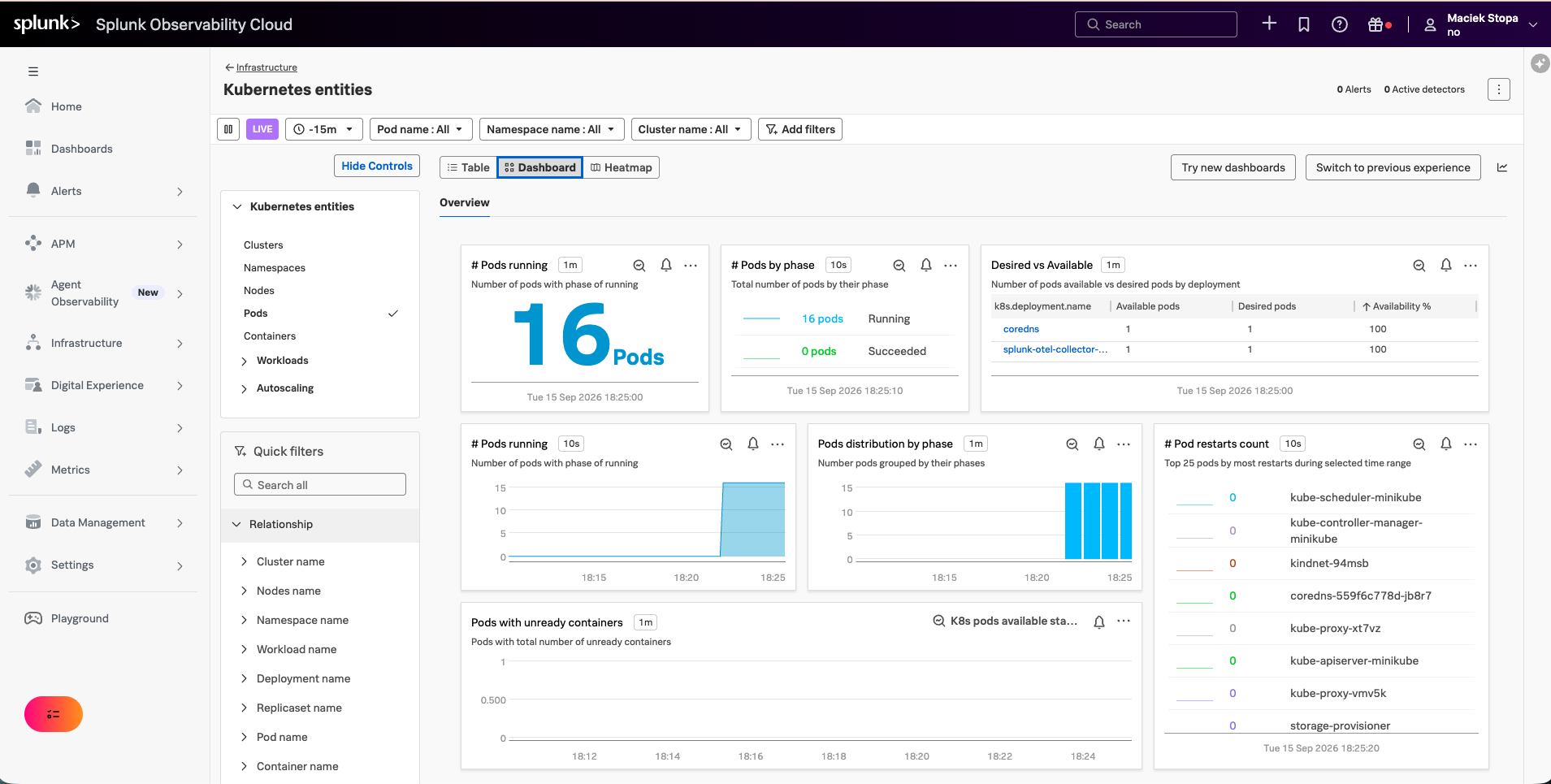
Infrastructure > Kubernetes entities > Pods, Dashboard tab: pods by phase, desired vs available, and restarts, none of it built by hand. Break something
Both UIsA typo in an image tag looks like success in the terminal: nothing errors. The deployment is created, but the container never starts, so there will never be a container log for it.
kubectl create deployment broken --image=nginx:1.99-does-not-existExpect:- In Splunk,
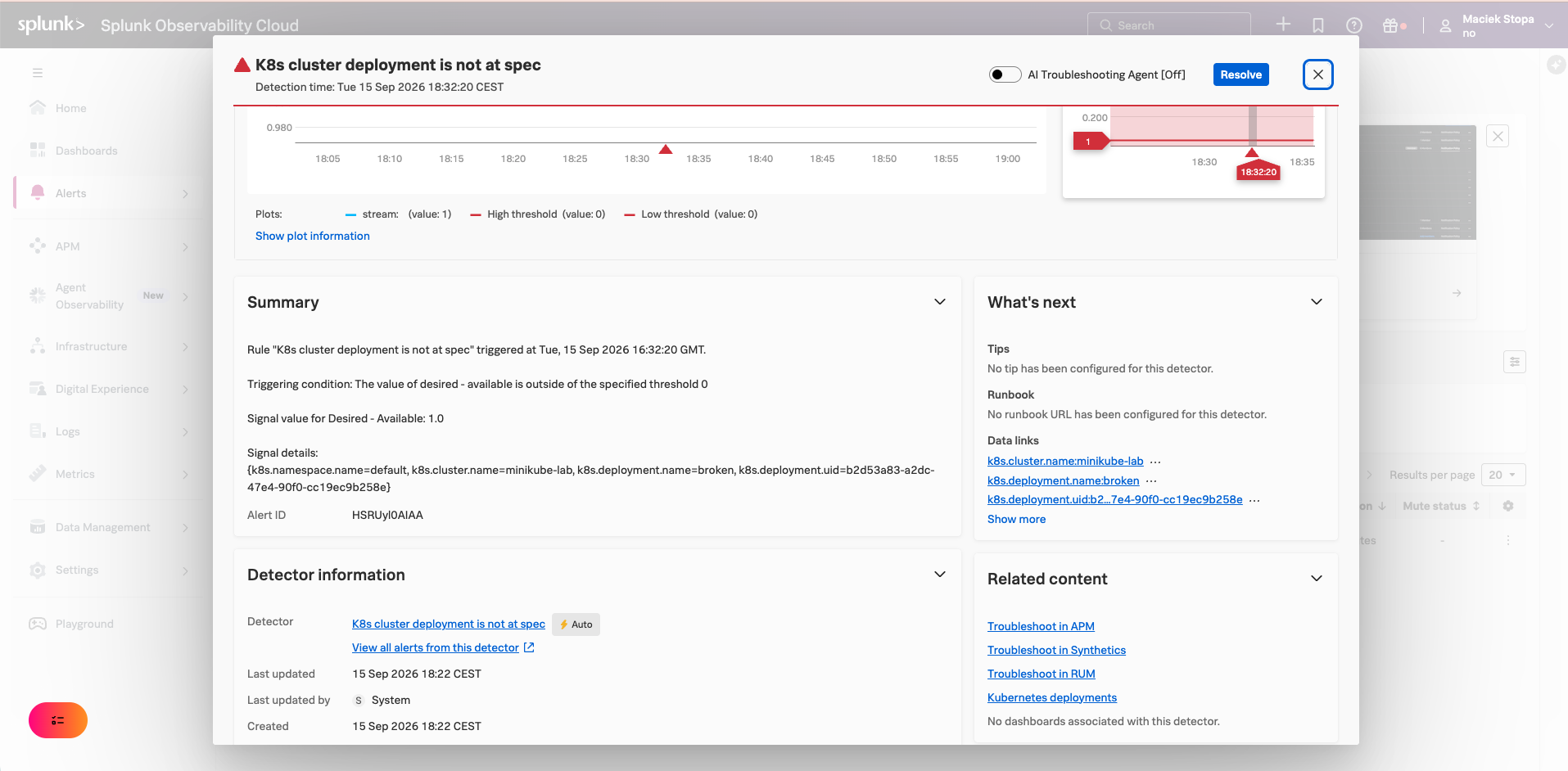
index=k8s sourcetype=kube:events k8s.pod.name="broken-*"returns the whole pull failure within seconds: Pulling, Failed to pull image, ErrImagePull, BackOff. That is the scheduled search from use case 3. - In Observability Cloud, the AutoDetect detector "K8s cluster deployment is not at spec" fires within about five minutes, on desired minus available = 1. Nobody configured a detector.
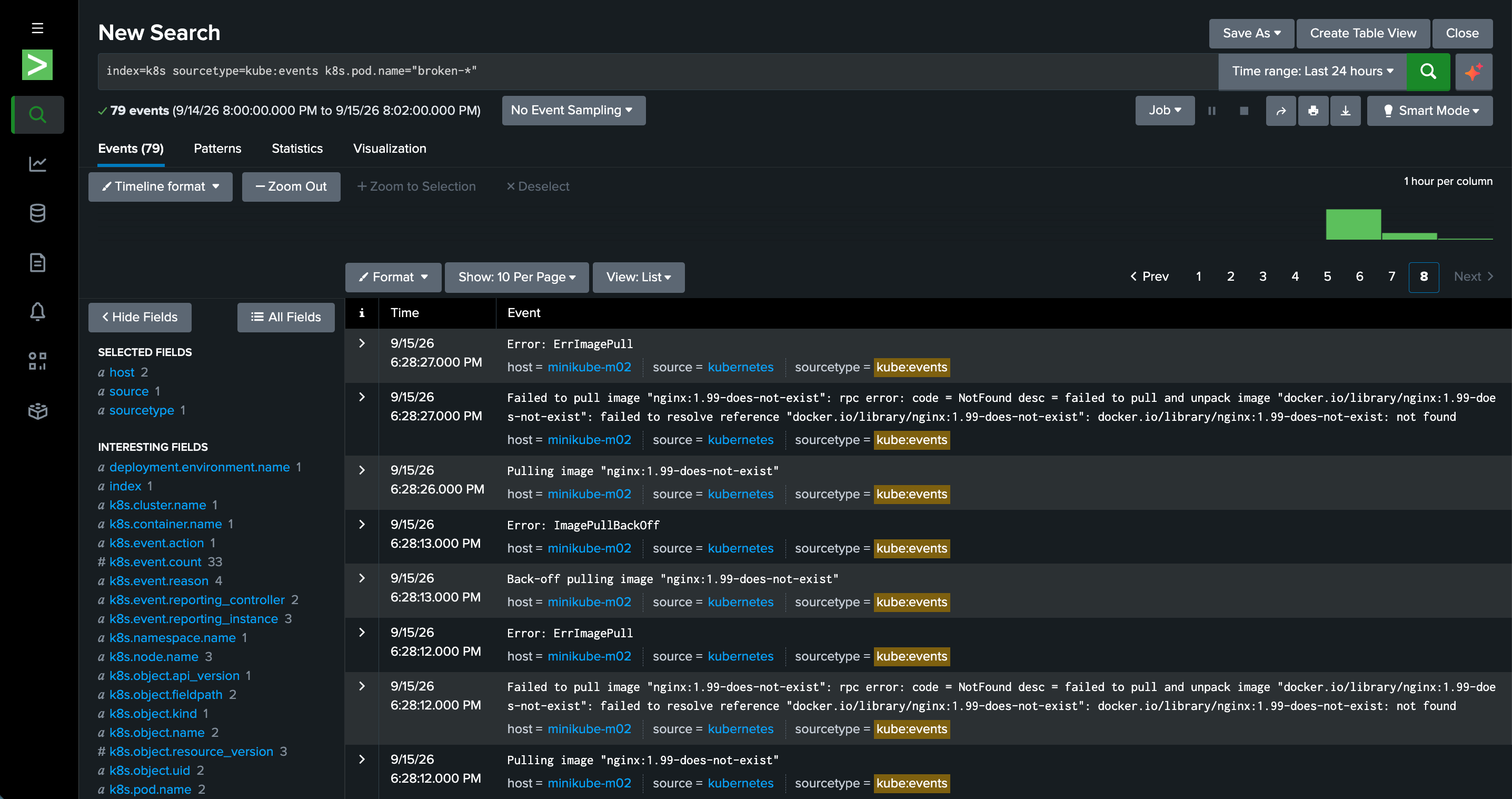
The failure in Splunk as events, one second after the deployment was created, found through the k8s.pod.namefield because the kubelet never puts the pod name in the message.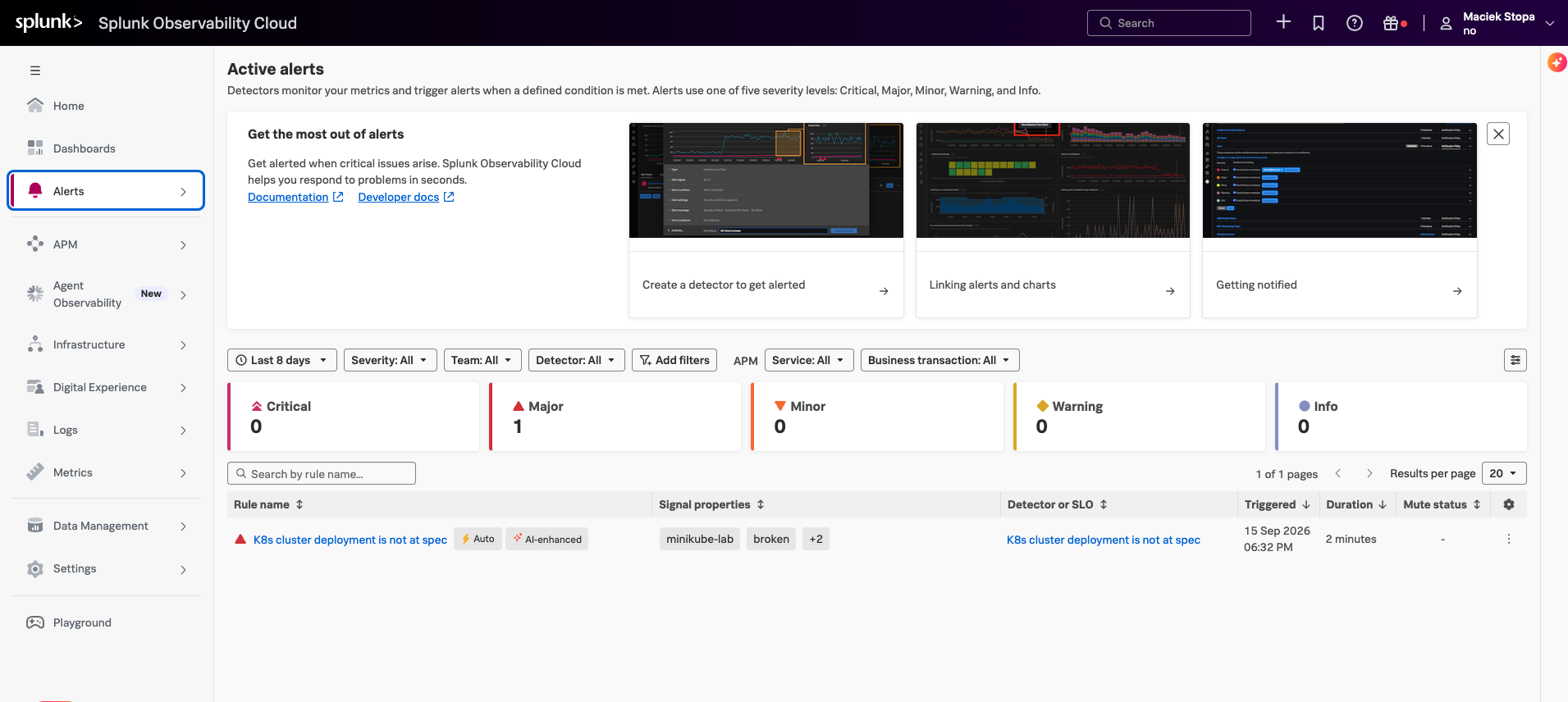
The same failure in Observability Cloud as an alert: "K8s cluster deployment is not at spec" fired inside the five-minute window the detector promises. Nobody had to configure it. - In Splunk,
Tear down
Terminalhelm uninstall splunk-otel-collector -n otel minikube deleteThe trials expire on their own.